#Microsoft and #NoSQL data store, for your modern cloud application-#DocumentDB
Microsoft has recently introduced a new product called DocumentDB as part of the Azure services which is a NoSQL data store and I believe…
#Microsoft and #NoSQL data store, for your modern cloud application-#DocumentDB
Microsoft has recently introduced a new product called DocumentDB as part of the Azure services which is a NoSQL data store and I believe it is a very good move and at a very good time!
There was another No schema store earlier(kind of, because each row on a table can have it’s own structure!) called Azure Table storage, but it is more like a Key/Value pair storage and not a perfect Document storage where you can store JSON objects, so if you wanted to access rows with the Key and you have a simple structure, it is really fast and efficient to go with Azure Table Storage, other than that you better look for a different data store.
I think DocumentDB is going to be a competition for MongoDB or some other Document stores out there and as of now, and as of now there is no plan for Microsoft to have an on-premise version of this product and if you want to use it you have to get an Azure subscription which might be a big draw back!
Anyways, You can start by going into the new Azure portal here: https://portal.azure.com
As you can see in the picture below, when you click on the bottom left hand + sign (New) then click on Data+ Storage category, and there it is :Document DB
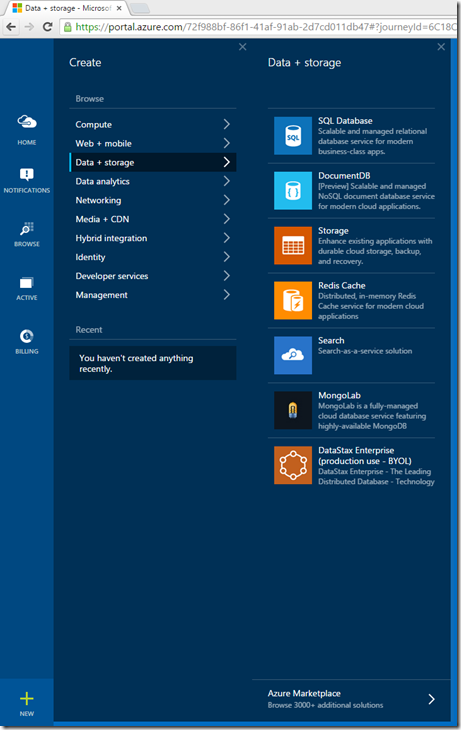
The “Id” should only be lower case! not sure why! maybe they are hosting this on Linux?! Anyways that’s how it is (this azure portal is still in preview so it might be fixed later on)
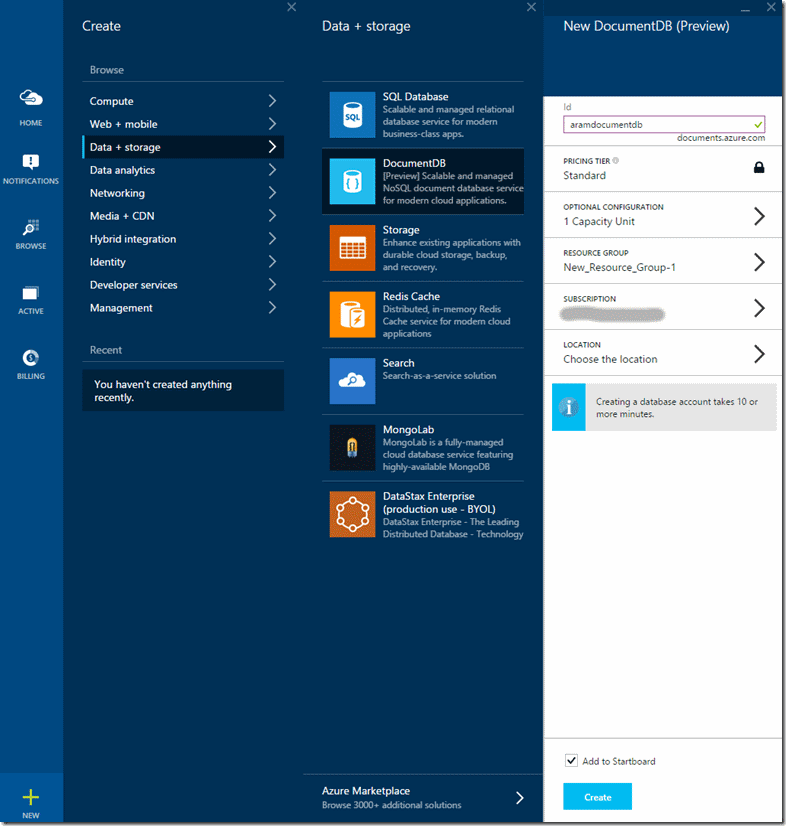
Right now, it takes a very long time to create the DocumentDB! again maybe because it is in Preview! I’m just comparing this with the time it will take in Microsoft SQL Server Management Studio to create a database and this really takes more than 10 minutes to finish. (There is even a message right there that says it will take about 10 minutes to finish creating the database)
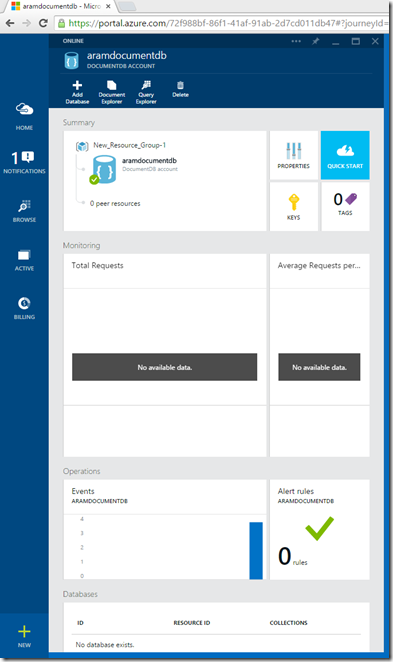
After the database is created it will directly take you to the DocumentDB page that you just created, and if you close the browser you can get back there from the Azure portal start page (Picture below).
In your DocumentDB dashboard there are some information, and the most important part that you are going to need to connect and interact with your DocumentDB from your application is under the KEYS menu.
All you need to connect to your DB is the URI and the Primary Key, which is basically your connection string that we have in Entity Framework and SQL Server world.
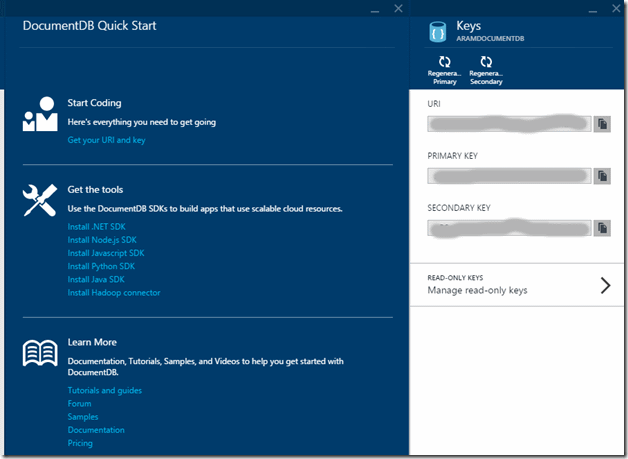
If you click on the QUICK START link you will see some useful links and tutorials on how to work with DocumentDB and different adapters available for different programming languages.
Now let’s jump into the code and start creating entities there
I’ll create a simple class library and a test project to do some basic CRUD operations with the DocumentDB:
First you need the Microsoft Azure Document Client nuget package to be installed in your projects which you can get it from this location: http://www.nuget.org/packages/Microsoft.Azure.Documents.Client/
Note that as of now it is in pre release state, so when you want to download the package, make sure you look for it with –pre command so that your package manager can find it.

Here is my DocumentDb provider class to do some operations:
public class DocumentDBProvider
{
private static string EndpointUrl ="Get this from the KEYS section in DocumentDB dashboard in Azure portal, use the URI property";
private static string AuthorizationKey ="Get this from the KEYS section in DocumentDB dashboard in Azure portal, use the PRIMARY KEY property";
private static string DatabaseName ="InterviewDB";
private static string DocumentCollectionName ="InterviewCollection";
public async Task<DocumentCollection> CreateDatabaseAndDocumentCollection()
{
var client =new DocumentClient(new Uri(EndpointUrl), AuthorizationKey);
Database database = await client.CreateDatabaseAsync(new Database { Id = DatabaseName });
DocumentCollection documentCollection = await client.CreateDocumentCollectionAsync(database.CollectionsLink,
new DocumentCollection { Id = DocumentCollectionName }
);
return documentCollection;
}
public async Task<ResourceResponse<Document>> AddCanidateToCollection(Candidate candidate)
{
var client =new DocumentClient(new Uri(EndpointUrl), AuthorizationKey);
Database database = client.CreateDatabaseQuery().Where(db => db.Id == DatabaseName).AsEnumerable().FirstOrDefault();
DocumentCollection documentCollection = client.CreateDocumentCollectionQuery(database.CollectionsLink).Where(db => db.Id == DocumentCollectionName).AsEnumerable().FirstOrDefault();
return await client.CreateDocumentAsync(documentCollection.DocumentsLink, candidate);
}
public List<Candidate> GetCandidatesCollection()
{
var client =new DocumentClient(new Uri(EndpointUrl), AuthorizationKey);
Database database = client.CreateDatabaseQuery().Where(db => db.Id == DatabaseName).AsEnumerable().FirstOrDefault();
DocumentCollection documentCollection = client.CreateDocumentCollectionQuery(database.CollectionsLink).Where(db => db.Id == DocumentCollectionName).AsEnumerable().FirstOrDefault();
return client.CreateDocumentQuery<Candidate>(documentCollection.DocumentsLink).ToList();
}
public List<Candidate> GetCandidateById(int candidateId)
{
var client =new DocumentClient(new Uri(EndpointUrl), AuthorizationKey);
Database database = client.CreateDatabaseQuery().Where(db => db.Id == DatabaseName).AsEnumerable().FirstOrDefault();
DocumentCollection documentCollection = client.CreateDocumentCollectionQuery(database.CollectionsLink).Where(db => db.Id == DocumentCollectionName).AsEnumerable().FirstOrDefault();
return client.CreateDocumentQuery<Candidate>(documentCollection.DocumentsLink).Where(m => m.CandidateId == candidateId).Select(m => m).ToList();
}
}
As you can see, there are 4 members in this class,
- CreateDatabaseAndDocumentCollection: is for Creating the Database and one is for the DocumentCollection object (DocumentCollection object is what we use to know them as Tables in Relational Database design world, but they are not exactly like tables if you refer to the NoSQL Stores design, because they are like self contained entities in your application)
- AddCanidateToCollection: is the method that adds documents to the DocumentCollection. in this sample it adds a populated POCO class called Candidate to the DocumentCollection
- GetCandidatesCollection: this method returns all the documents inside the DocumentCollection we added the entities to, without any conditions
- GetCandidateById: this method queries the DocumentCollection and looks for all the documents there that matches the passed in CandidateId
Now, I add 4 test methods to test these methods:
[TestClass]
public class DocumentDBTest
{
[TestMethod]
public async Task CreateDatabaseAndDocumentCollection_Test()
{
var sut =new DocumentDBDemo.DocumentDBProvider();
var result = await sut.CreateDatabaseAndDocumentCollection();
Assert.IsNotNull(result);
}
[TestMethod]
public async Task AddCanidateToCollection_Test()
{
var sut =new DocumentDBDemo.DocumentDBProvider();
var candidate =new Candidate()
{
CandidateFirstName ="Aram",
CandidateLastName ="Koukia",
CandidateId = 1,
Status =new CandidateStatus() {
CandidateStatusId= 1,
CandidateStatusName ="New"
}
};
var result = await sut.AddCanidateToCollection(candidate);
Assert.IsNotNull(result);
}
[TestMethod]
public void GetCandidatesCollection_Test()
{
var sut =new DocumentDBDemo.DocumentDBProvider();
var result = sut.GetCandidatesCollection();
Assert.IsNotNull(result);
}
[TestMethod]
public void GetCandidateById_Test()
{
var sut =new DocumentDBDemo.DocumentDBProvider();
var result = sut.GetCandidateById(1);
Assert.IsNotNull(result);
}
}
Easy, isn’t it? I find it working with Poco classes very naturally, and serialization and decerialization happens very smooth and the code is pretty clean, and when you have more complicated entities, your code will still stay the same as above and that is very interesting power to have!
And you can explore your documents and DocumentCollections from the Azure portal and your documents.
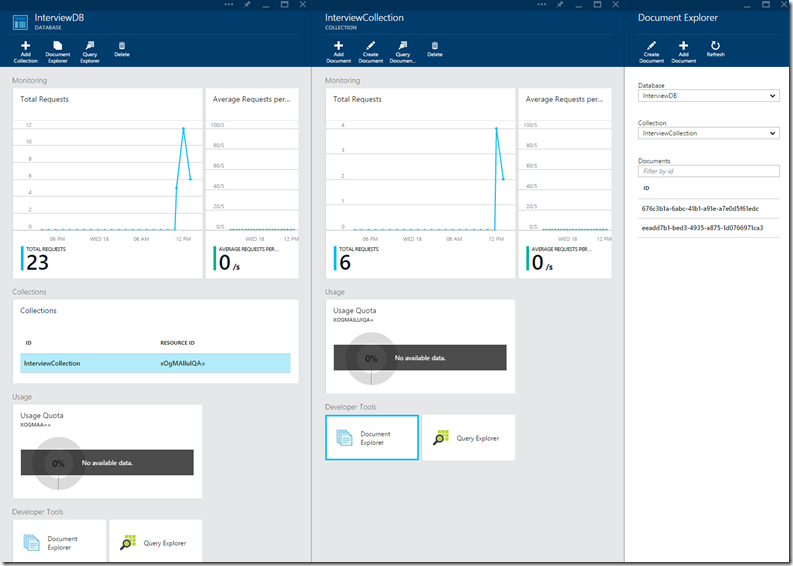
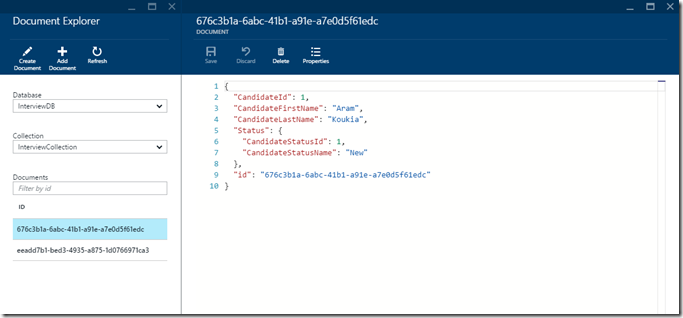
So you click on your DocumentDb database, and then Click on your DocumentCollection, and then click on Document Explorer link, and you can see your documents stored there (you will see one Guid for each document) and by clicking on each Guid, you can see the content of the Document in JSON format:
You can find this piece of code on GitHub here: https://github.com/aramkoukia/AzureDocumentDBDemo
In the near future, I’ll compare the performance of the DocumentDB is storing and retrieving data with SQL Azure and see how that turns out.