#Microsoft Windows #Azure #WebJobs and How to keep them awake
In case you have come across Microsoft Azure WebJobs (if not you can take a look at what it is here) you know that they are basically…
#Microsoft Windows #Azure #WebJobs and How to keep them awake
In case you have come across Microsoft Azure WebJobs (if not you can take a look at what it is here) you know that they are basically background processes that you want to run them on a Azure hosted website, and you can make them to run continuously, on demand or based on a specific schedule.
In our latest project we had a WebJob in our Azure website that was supposed to listen to some messages on Azure Service Bus (ASB), so based on that we were expecting to run a process continuously so that it can listen to bus messages and process them as soon as they arrive. so with this background we chose “Run continuously” as WebJobs’s schedule at deployment time.
After some time, test team reported that the WebJob does not work! and as usual we checked the Azure portal in that environment and checked the status of the job and noticed that it is running!
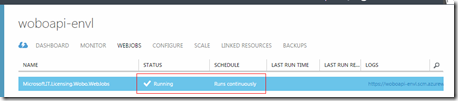
But the observation was, as soon as we open the WebJob tab in the azure portal we could see that it says “Web Job Starting” and after a few seconds it says “Web job Running”!
So basically, after some time the WebJob, which is set to run continuously, goes to sleep regardless of the Schedule settings.
Here are how Azure portal looks like, when you first select your Azure Website:
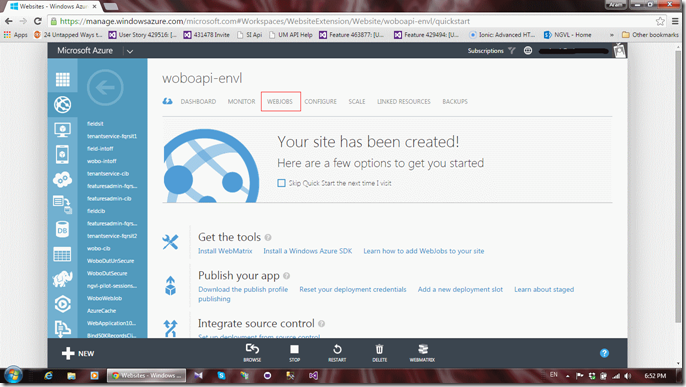
Now when you click on the WebJob link, you will see this:
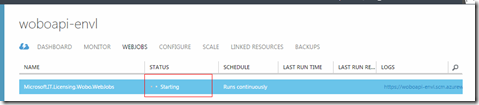
And after a few seconds, you will see it starts running:
So what’s the trick? there is a setting in the Configure tab called “ALWAYS ON“ which it has a very bold message on top of it that says “Should be turned on if you have a job that runs continuously”.
Here is how this setting looks like:

When you set your WebJob, make sure you set this to ON from your deployment script or the Azure portals.