Remote Profiling in #Azure Web Apps and API Apps
Today I’m going to show you how to do Remote Profiling on an Azure Web App or Azure API App or a WebJob.
Remote Profiling in #Azure Web Apps and API Apps
Today I’m going to show you how to do Remote Profiling on an Azure Web App or Azure API App or a WebJob.
This scenario happens a lot when you see weird behavior (Slow performance) in your service in a certain environment and you want to know why but it is Production environment or pre production and you don’t want to attach a debugger to stop other users but you just want to check what is happening there.
There are different ways to do Remote Profiling in Azure Web Apps and for today I’m just showing the simplest approach that doesn’t need anything other than a browser.
As you might know every Azure Web App has a Kudu web site too which you can get into using a URL like this (See the extra .scm in the url):
https://YOURWEBSITENAME.scm.azurewebsites.net/
Then you will see the Kudu website of your app which will look something like this which will give you some information about the your application:
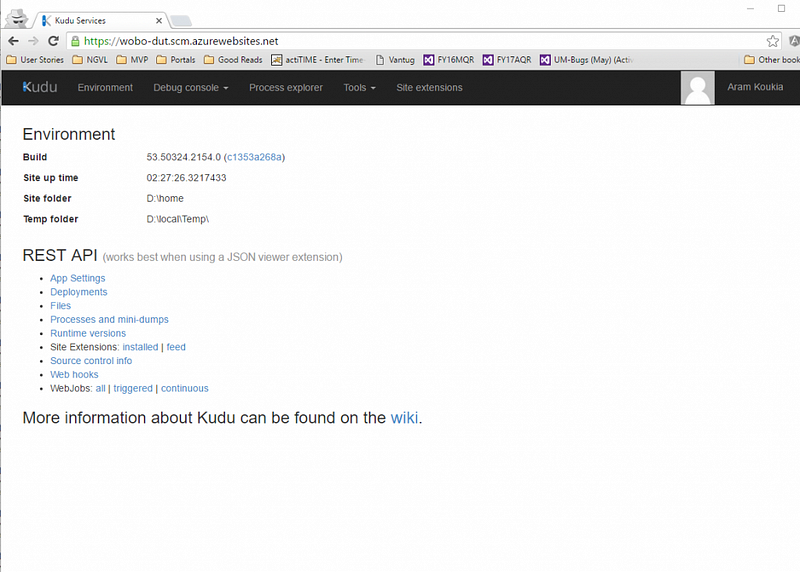
In the Kudu portal we are interested in Process Explorer menu, so we click on that and we can see all the processes that are active in our VM Sandbox (in case of Web Apps or API Apps we will profile the w3wp process which is the IIS process).
Here is how this page looks like:
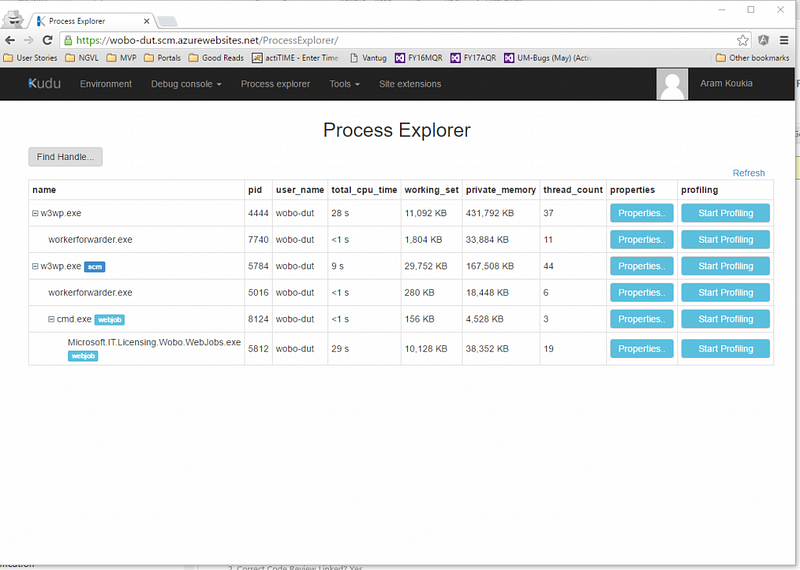
At this point, what we are going to do is click on “Start Profiling” and then make some requests on the website or make some requests to the API and then click on “Stop Profiling” and you will see the message below for a minute and the result will be downloaded in your browser:
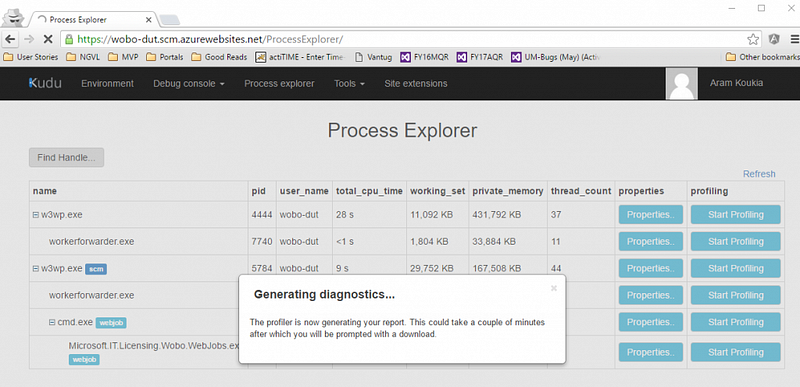
This will download a file with *.diagsession extension which you can open it up with Visual Studio and it will show you the details of the profile. And then you can identify the areas which were performing slow.
Below is a screenshot of the profiling session and as you can see it has broken down the CPU usage and shows you which dll is consuming the most CPU.
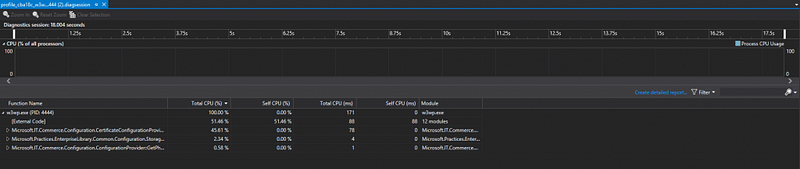
Then if you need more details (which method is causing this issue?) click on the “Create Detailed Report” link on the mid right section of the page and you will see the detailed report of what actually happened as well as the function that caused the issue.
Below is the screenshot of the detailed report that shows you where the issue is:
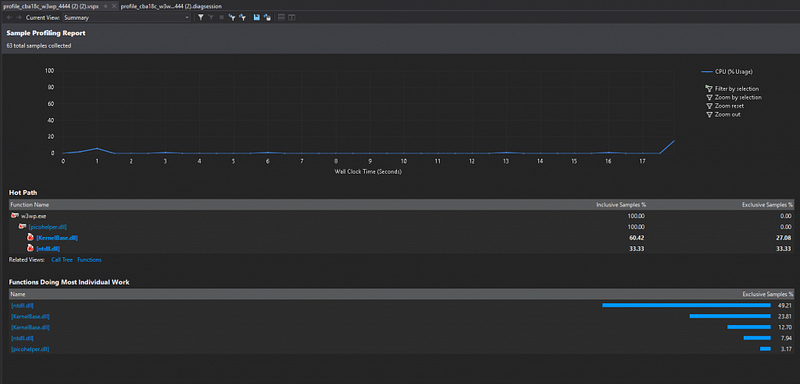
As you can see it shows you the “Hot Path” which you can dig deeper and see what is the actual bottleneck.
There are other ways to do Remote Profiling in Azure Web Apps or Azure API Apps which I will show you in the next posts.
Hope this helps you to investigate your application issues nice and easy.