Clone your existing App using Azure portal
I’m going to show you how easy it is to Clone in Azure Portal. With this feature you can setup a new instance of you app in seconds and…
Clone your existing App using Azure portal
I’m going to show you how easy it is to Clone in Azure Portal. With this feature you can setup a new instance of you app in seconds and start using it.
Clone in Azure Portal feature allows you to move the App you want to clone to a different region or keep it in the same region.
When you clone, Azure will also clone all the App Settings, Connection strings and Deployment sources and Certificates, etc too, so the new cloned app is more or less up and running.
Talking about cloning existing Apps, these Apps can be Web App, Mobile App or API Apps in Azure App Services suit.
How to Clone in Azure Portal
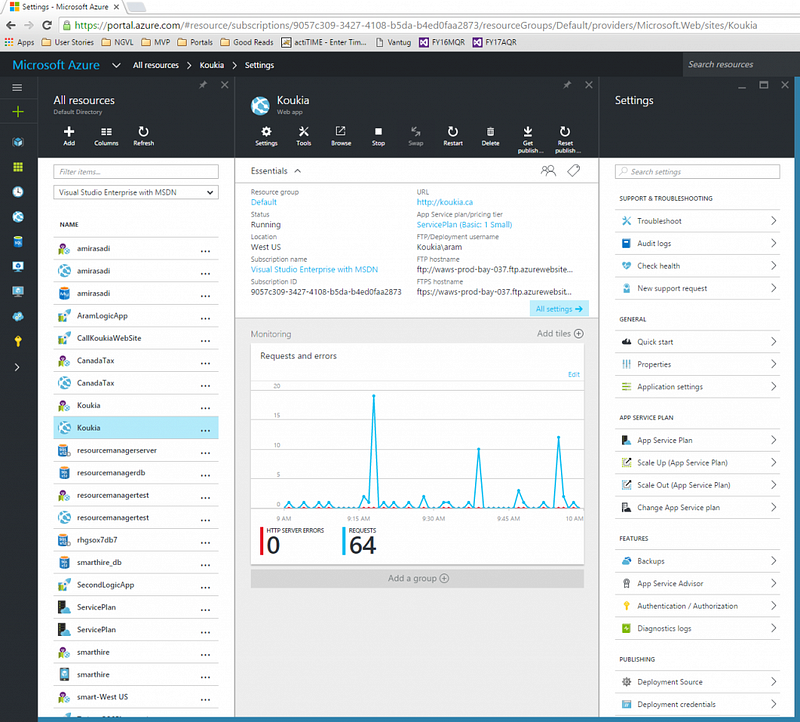
First you login to the Azure portal and from the list of resources select the App that you want to Clone.
Below is the screen where I have selected an App (This one is a Web App):
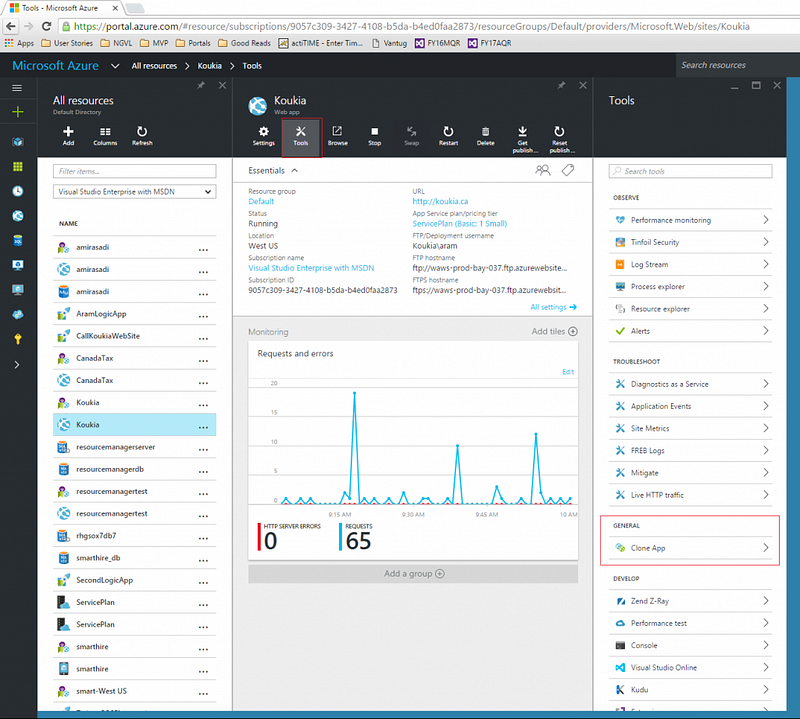
Then from the top menu, select Tools and you will see list of tools available and from those, there is a “GENERAL” section which you can see the “Clone App” menu there.
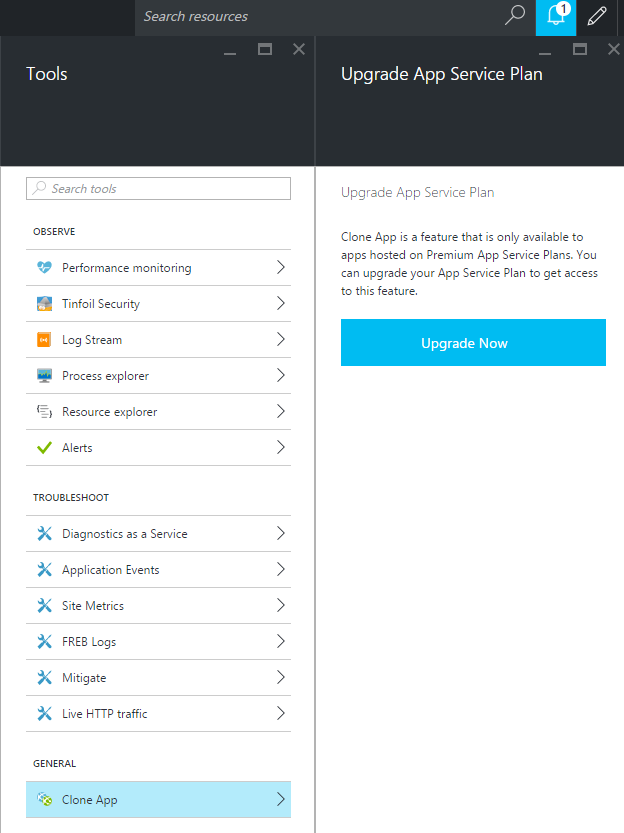
When you click the “Clone App”, if your Service Plan is Basic (Cloning feature is only available in Premium service plan as of now) you will be asked to upgrade your service plan to be Premium. So you will pick one Premium plan from the menu:
Once you select the Service plan, then you can enter the new App’s Name and other Clone Settings in the next screen:
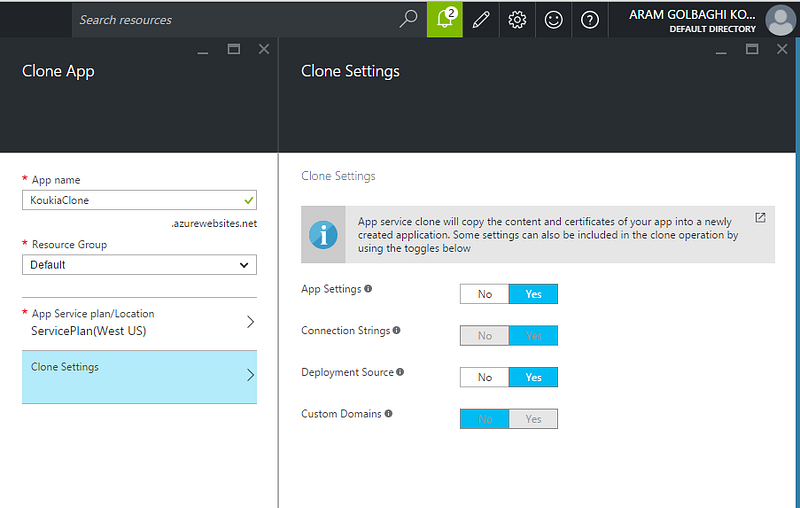
In the Clone Settings section, you can set to clone your App Settings, Connection Strings as well as Deployment Sources. But of your App has some custom domain setup, those settings will not be applied. Also in the Clone App page, you will be able to choose an app pool in an existing App Service Environment.
Now you are ready to go, just click Create and Azure will start deploying the bits for you.
Originally published at koukia.ca.