Create a Power BI dashboard using Azure Application Insights Analytics data
In some previous posts I explained what is Azure Application Insight Analytics, and in this post I will show you how you can create Power…
Create a Power BI dashboard using Azure Application Insights Analytics data
In some previous posts I explained what is Azure Application Insight Analytics, and in this post I will show you how you can create Power BI dashboard using Azure Application Insights Analytics data.
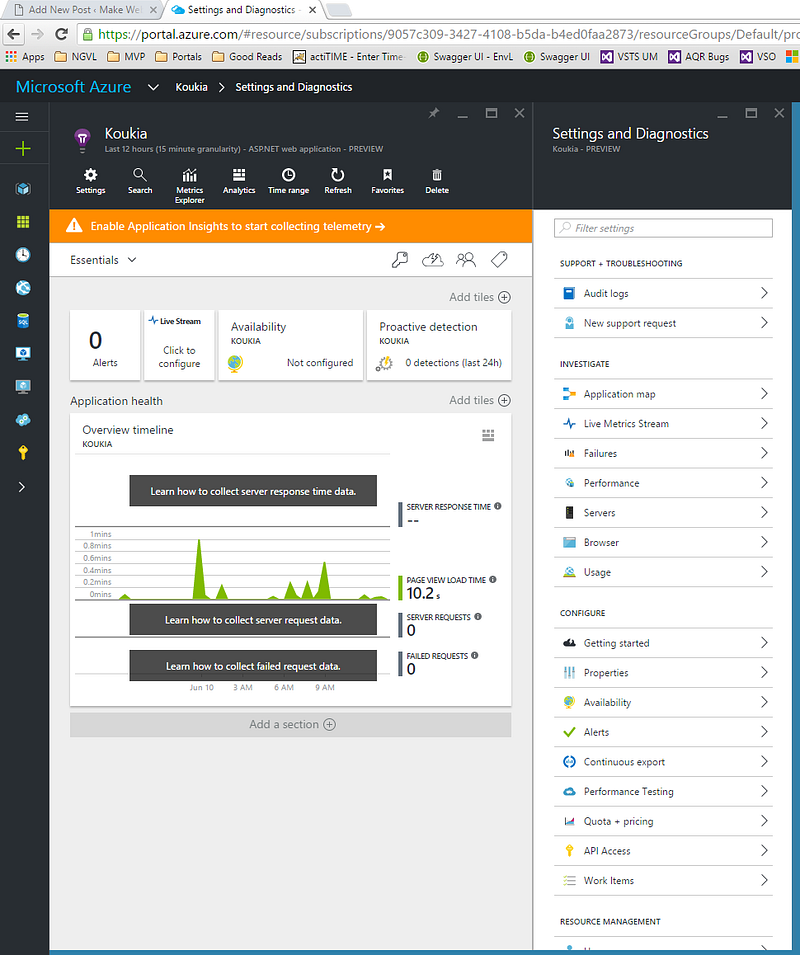
So to start, you should login to the Azure Portal and navigate to your Application Insight resource there which will look like below:
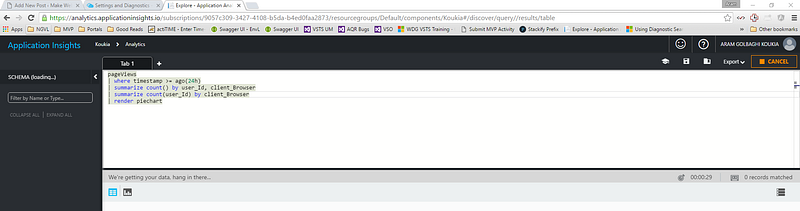
Then you click on the Analytics menu to go to the Kusto page to write your Kusto query that you want to generate a Power BI report out of it:
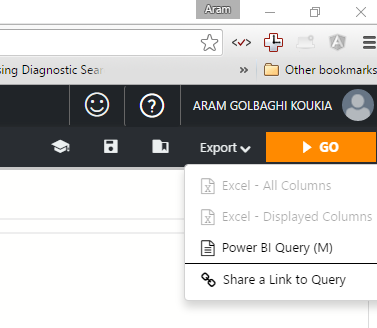
After you wrote your query, click on the “Export” and select the “Power BI Query” menu:
Then it downloads a .txt file for you which contains the Power BI query that you have written in Kusto window which will look like below:
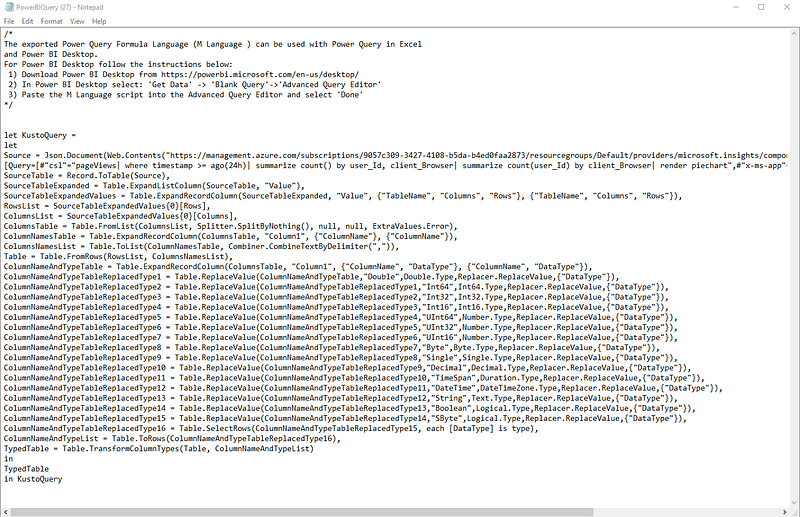
This is all we need from Azure Application Insight side. Now it is time to move it to Power BI.
Import Application Insights data to Power BI
First of all you need to download the “Power BI desktop” application using the below URL:
https://www.microsoft.com/en-us/download/details.aspx?id=45331
Then you open the application and click on the “Get Data” menu from the top ribbon and from the list select the “Blank Query” option:
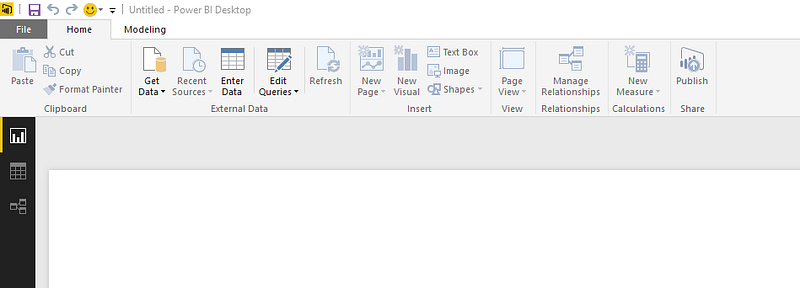
Then you click the Advanced Editor menu from the top ribbon:
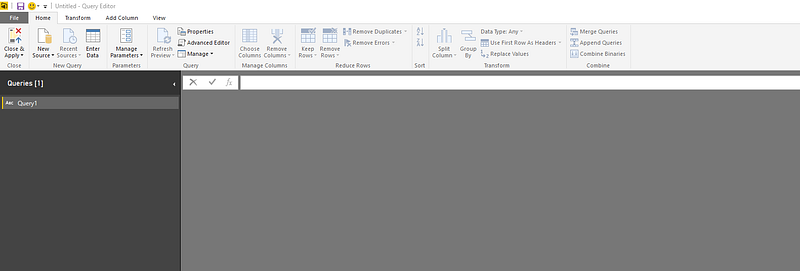
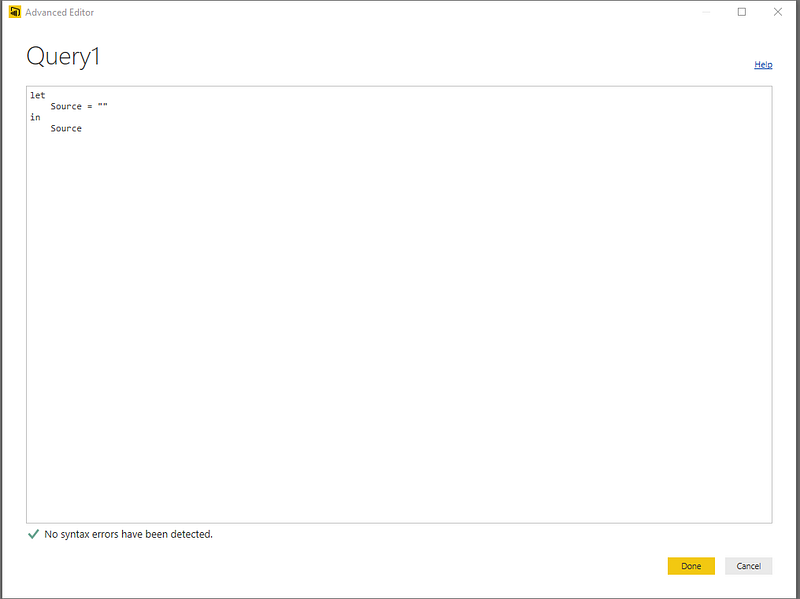
And you will see the Advanced Editor dialog open where you should copy and paste the content of the Power BI query you downloaded (the content of the .txt) to that window and click “Done”.
Now you should be able to see the result of the query execution and the query name (maybe you want to rename the query to be something other than “Query1” to be more meaningful when you come back to it later on).
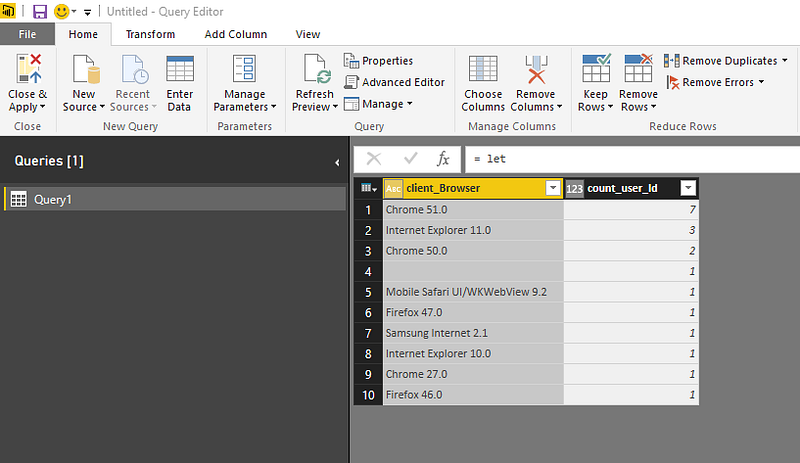
Now you are almost done, you can click on “Close & Apply” from the top left corner and you can start to build your report:
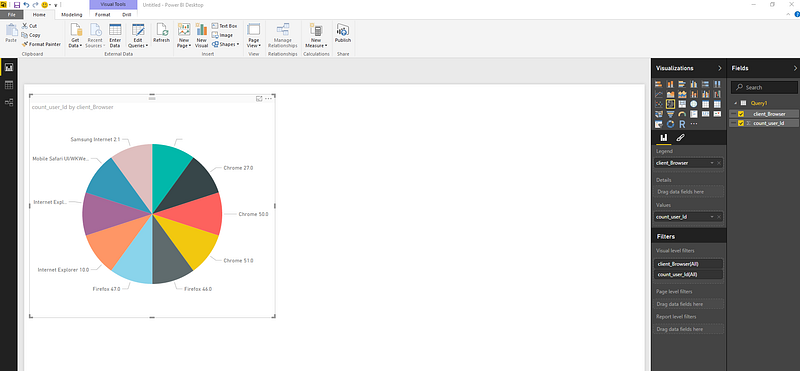
From the very right column you can select the columns you want in your report as well as the visualization type to make the report look meaningful and readable.
All done, now you can click on “Publish” from the top of the page where you will have to save your Power Bi file (.pbix) and then publish your dataset/report to your Power BI account.
Found this post useful? Kindly tap the ❤ button below! :)