Azure Logic App — API Integration made easy
Windows Azure team is on fire introducing real cool features in the Cloud world that we come across them all over the web and events, but…
Azure Logic App — API Integration made easy
Windows Azure team is on fire introducing real cool features in the Cloud world that we come across them all over the web and events, but Azure Logic App that I’m about to show you is a one of the best that I hope you enjoy its level of simplicity and abstraction.
Azure Logic App is one of the 4 different types of web/mobile application services that Azure offers.
Azure Web App
Azure API App
Azure Mobile App
Azure Logic App
Going through these 4 types, they are from low to very high level of services you get from Azure. That means when you pick Azure Web Apps you have to handle everything yourself and you will need to write code for any feature you need and moving to Azure Logic App, you can do integration between services with just drag and drop!
Now lets get to Azure portal and create a real simple Azure Logic App.
Lets make our first Azure Logic App
Here is what we are going to build:
- Have a scheduler to trigger my App, say I want it to run every hour.
- Go to Twitter API and search for any tweet that has #AzureLogicApp in it.
- Using the Office 365 Connector, email the found tweet on step 2 to myself with the content of the tweet.
For that, login to Azure portal here: https://portal.azure.com (You will need a basic subscription for this or a get a free 30 day trial)
Then Click on New and Select Web + Mobile option, then select the Azure Logic App.
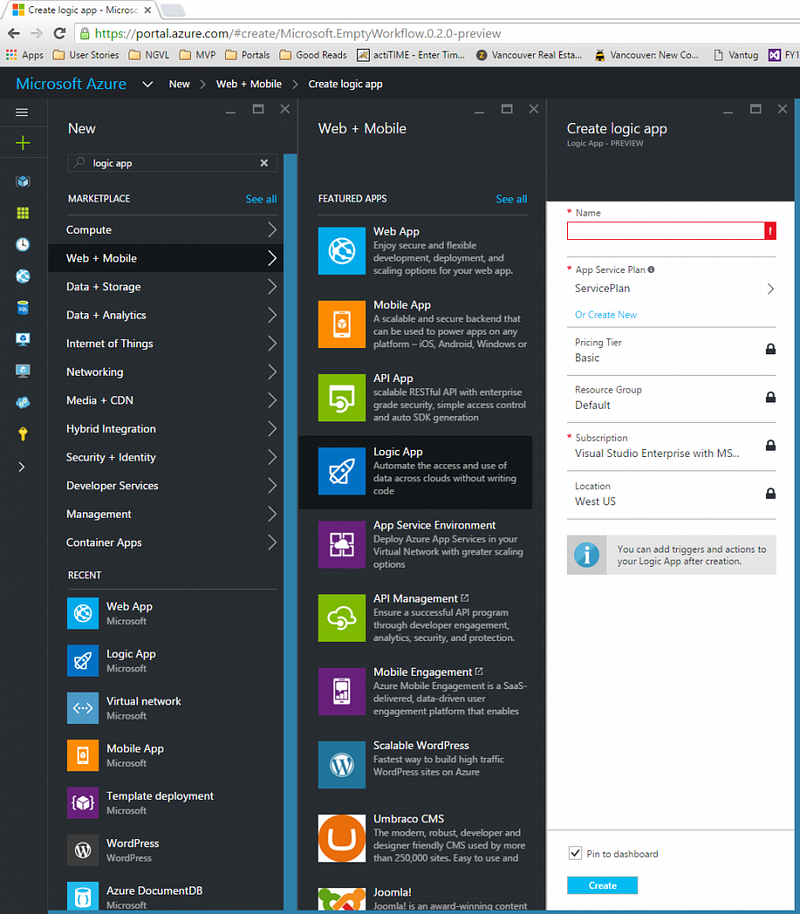
*Note that there has been a lot of updates to the way the Azure Logic App user interface works, so the sceenshots shared below might or might not go out of date soon.
Then enter the Name of the app and select all other settings under that like the Resource, Subscription, etc and click Create and it will take some seconds for Azure to create the App. Once that is done you will see the Logic App Designer window and the first box (which is the Trigger) is put on the page and you can select one of the options.
I will go ahead and select the Recurrence trigger which is basically a timer to invoke the workflow:
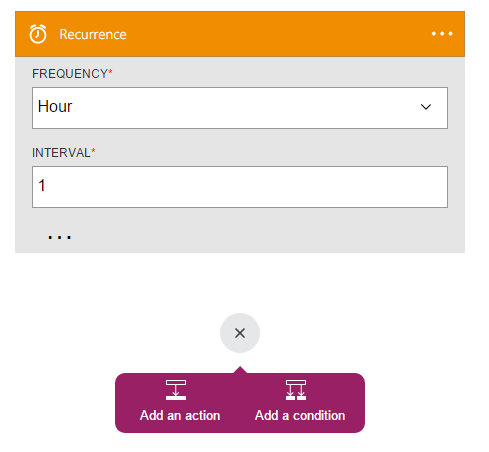
There are so many different triggers that you could pick here like Another Http service call, a message on the Azure Service Bus (A lot of ideas could come out of this one!) etc…
Next think we see is the purple box that asks us to select an Action or a Condition (just like normal flowcharts). At this point we click on “Add an action” menu and you can see all different connectors that are out there for you to use. For our purpose here I type in “Twitter” and it filters out all different actions that Twitter Connector supports. We are interested in the “Search Tweet” one so I click on that.
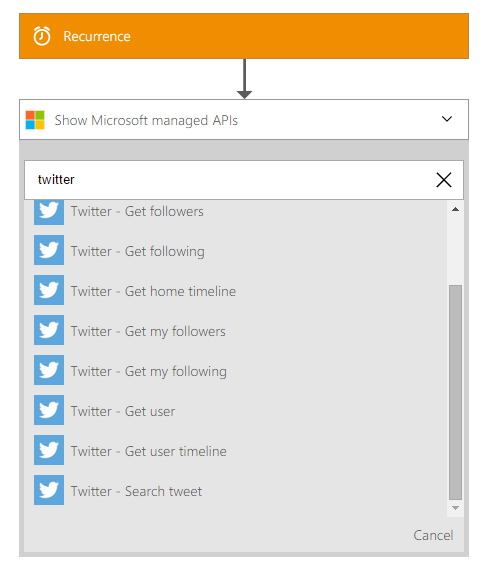
If it is the first time you use the Twitter Connector it will need some information to authenticate you(Your app which will be calling Twitter API to get the data)
For twitter integration you need to register an App with twitter in here: https://apps.twitter.com/ to get the API Key and API Secret from Twitter and put them in the Twitter connector box.
Once you did that you can connect on the Authorize button on the box to make it work.
Once you are authenticated you will see the Search Tweet box is asking you to enter the “Query Text” which is the text we are interested in, so in that box I enter “#AzureLogicApp” and that means we go to twitter and get all tweets that has this hashtag on them:
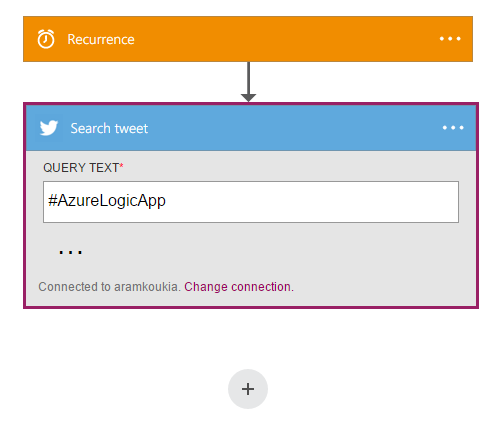
Now we want to add the next connector, so click on the little “+” icon there and search for “Office 365” to see all the actions this connector supports:
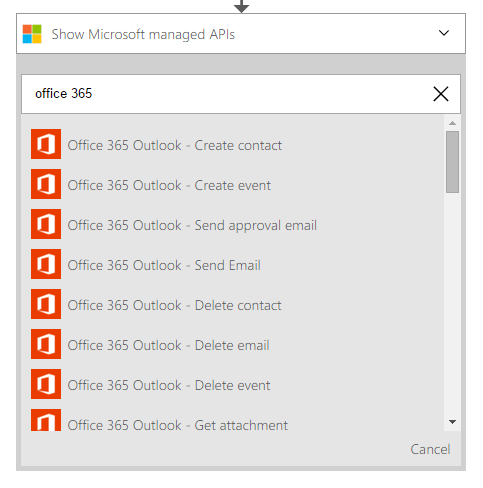
The one that I’m interested in is the “Office 365 Outlook — Send Email” so I select that and I will be presented with the page to specify the details of the email that I want to be sent:
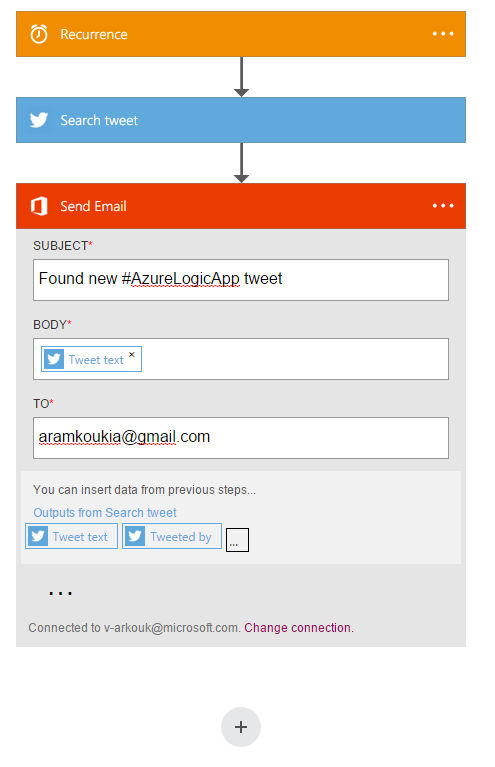
In each connector you will be presented with all the data that is captured in the previous Actions, so in this case I am presented with “Tweet Text”, “Tweeted by” etc which I can use those in this action as well as any fixed text that I like. So I put a fixed subject here and for the Body I put in the Tweet Text and I’d like to get the email myself so I put my own email address in the “To” box.
That’s it! Just click on the Save menu on the top left corner:
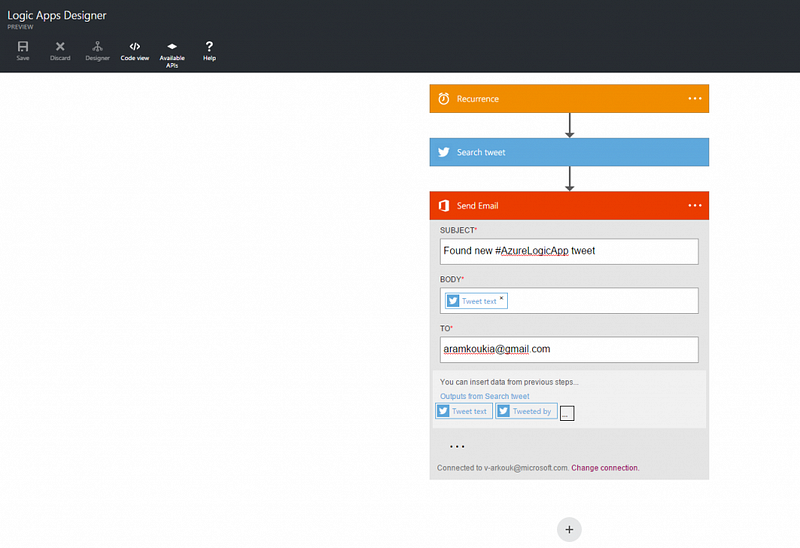
Once I save this I can see that email will start coming because when you save the App it will trigger it once:

If you want to do some manipulations of the flow, string manipulations, foreach loops, if statements, etc you can go to the “Code View” menu and see the actual code that was produced by the designer right there:
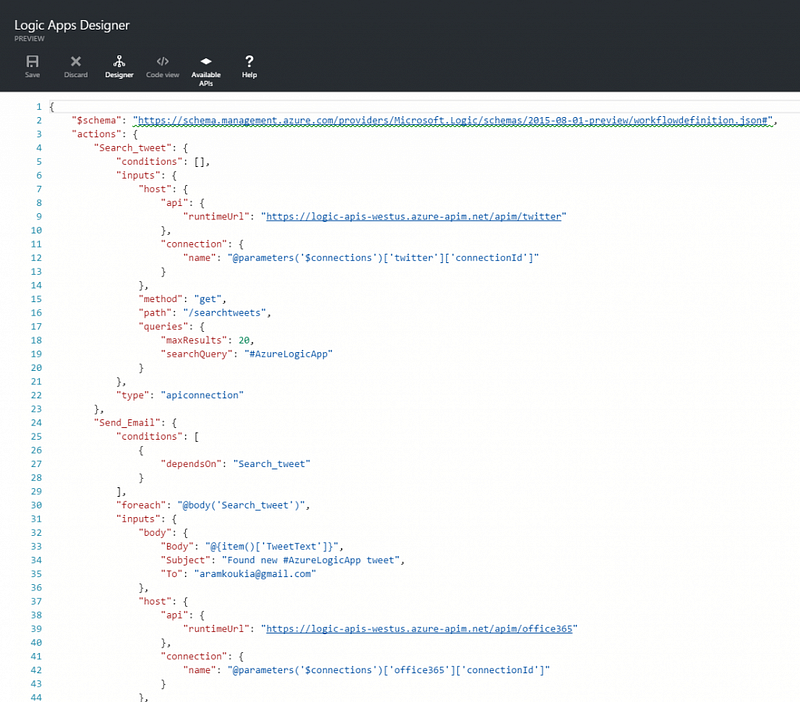
You can use the Azure Logic App Workflow Definition Language if you need to tweak the code you see above or completely write your own workflow.
Here is the link to the Workflow Definition Language documentation:
https://msdn.microsoft.com/en-us/library/azure/dn948512.aspx?f=255&MSPPError=-2147217396
How cool is that? Now you just need your own great ideas to build your own Azure Logic App and put this awesome Azure service into practice.
Originally published at koukia.ca.