Create a private #Ethereum #Consortium #Blockchain in #Azure
Private Blockchain network template in Azure
Create a private #Ethereum #Consortium #Blockchain in #Azure

Private Blockchain network template in Azure
In this tutorial, I demonstrate how to create a private Ethereum Consortium Blockchain network in Azure using one of the Azure Marketplace templates.
To begin the process, login to Azure portal and click on the “+” icon on top left corner.
Then in the search box, type in ”blockchain” and it will show you all the available templates with this name, and select the one called: “Ethereum Consortium Blockchain” by published Microsoft.
 Ethereum Blockchain template from Azure Market place
Now, on the right side (following picture), you will see a description of the template and a nice picture of the components it is going to deploy for us.
 Ethereum Blockchain Template in Azure Marketplace description
The following picture shows, what this template is going to deploy and how these component are connected to each other. Note that this is the current template definition and obviously it might change in the future by Microsoft.
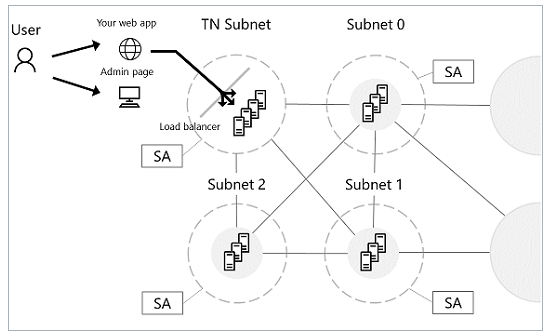 The Ethereum template will create this network in Azure
Configure basic settings
First tab is “Basic” which you provide the Resource Group name, Location and the name and password for the VMs that are being provisioned.
 Resource Groups and VM user name password for the Ethereum network
Network size and performance
The second tab, is about selecting the size and the plan of the VMs that are being created. For more details around the prices and configuration of each VM instance you can check the Azure portal.
 VM Size and Service plan selection for the Ethereum Network
Ethereum Settings
The third tab, is about the Ehereum network settings.
Network ID
Each Ethereum network has its own Network ID, with 1 being the ID for the public network. While we have restricted network access for mining nodes, we still recommend using a large number to prevent collisions.
Any value between 5 and 2,147,483,647 is allowed for Network ID.
Ethereum Account Password
The administrator password used to secure the Ethereum account imported into each node. This account is setup in the genesis block and pre-allocated with one trillion Ether.
Ethereum private key passphrase
The passphrase used to generate the ECC private key associated with the default Ethereum account that is generated. A pre-generated private key does not need to be explicitly passed in.
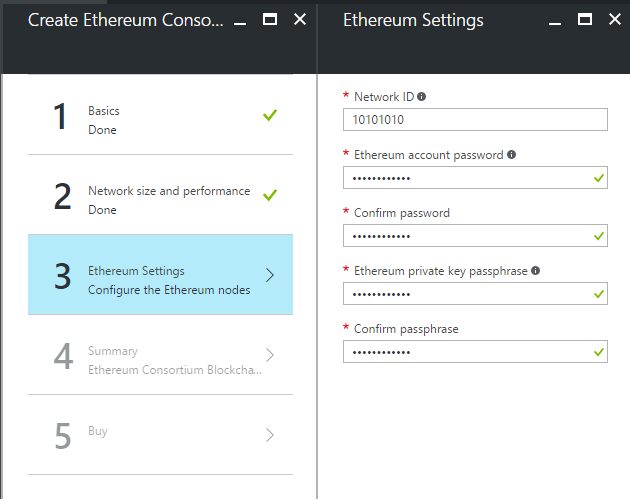 Ethereum settings page in Azure Portal
Summary Tab
Click through the summary blade to review the inputs specified and to run basic pre-deployment validation.
 Summary page of the Ethereum network
Buy Tab
The last tab is the legal and licenses stuff. Take a minute to review them and click on the Purchase button to start the deployment.
 Terms and Conditions for deploying the Ethereum network
Once you clicked on Purchase, Azure will start the deployment of all the pieces for you. When I tried this for the basic settings (all default values and default VM sizes) took about 15 minutes to finish the deployment.
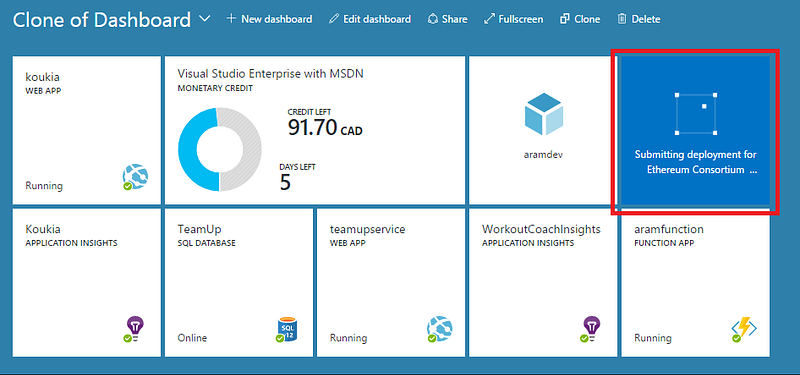 Azure in the middle of deploying Ethereum network components
After the deployment is done, you can go to the “All resources” tab and see the components installed in the “ResourceGroup” you selected. In my case the resource group name was “EthereumAram” as you can see in the following picture.
 All Ethereum components deployed to Azure
Opening the deployed Admin Portal
To open the Admin portal for this network that was deployed, click the Resource Group, and click on he Deployments link (Says “5 Succeeded” in the following picture)
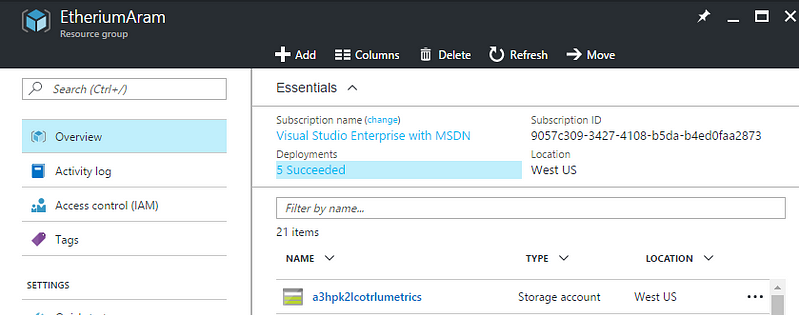 Azure Resouce group that all the Ethereum components are created there
Then click on the first item in the list. Says “microsoft-azure-mlockchain.azure-block…” in the following picture. Now in the right hand you can see the “ADMIN-SITE” url.
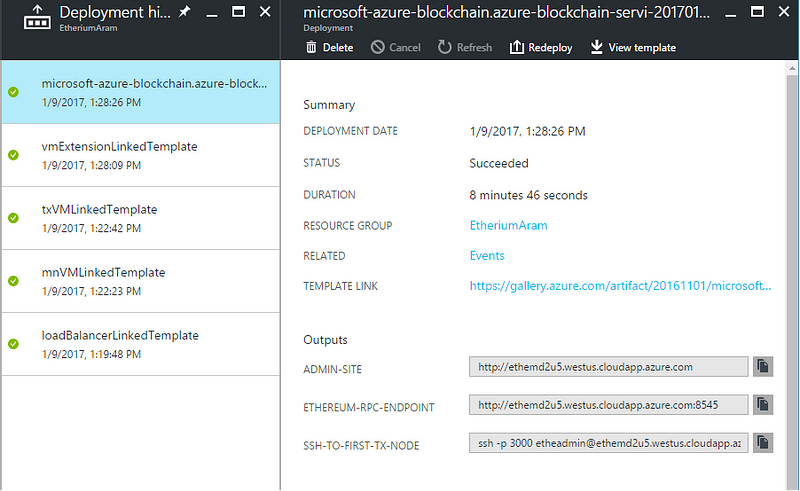 The Load Balancer DNS settings that displays the Admin Site and the Ethereum RPC Endpoint
Then you open that Admin Portal you can see the different Nodes hosted and some information about “Latest Block Number”, “Peer Count” etc.
In the following picture the nodes ending in mn0 and mn1 are miner nodes and the node ending in tx0 is the transaction node
 Private Ethereum network Admin Page
Obviously , this is just a starting point, and you can make changes to this network, create your own template and save it for your own future use if needed. And then you can implement your cool idea on top of blockchain in your private ethereum network hosted in Azure.
Book Recommendation
Here are some book recommendation if you are interested: