Azure Audit Logs
Using Azure Audit logs anything you do to the Azure resources in the azure portal or through Powershell is completely logged and you can go…
Azure Audit Logs
Using Azure Audit logs anything you do to the Azure resources in the azure portal or through Powershell is completely logged and you can go back to them and see who did what and when!
The audit log is done by Azure Resource Manager and it logs anything about creating, deleting or editing an Azure resource or if you grant or revoke permission to a user or to a resource.
You can go through these logs at any time using the Azure portal or you can use the Azure Rest API to go through these audit logs.
Recently Azure team has announced that you can Archive and stream the Azure Audit logs in your Azure Blob storage account for your future use and use tools/add-on like Splunk to view these logs and analyze them.
In this post I will show you how to go through Audit logs in the Azure portal:
Drill in to Azure audit logs
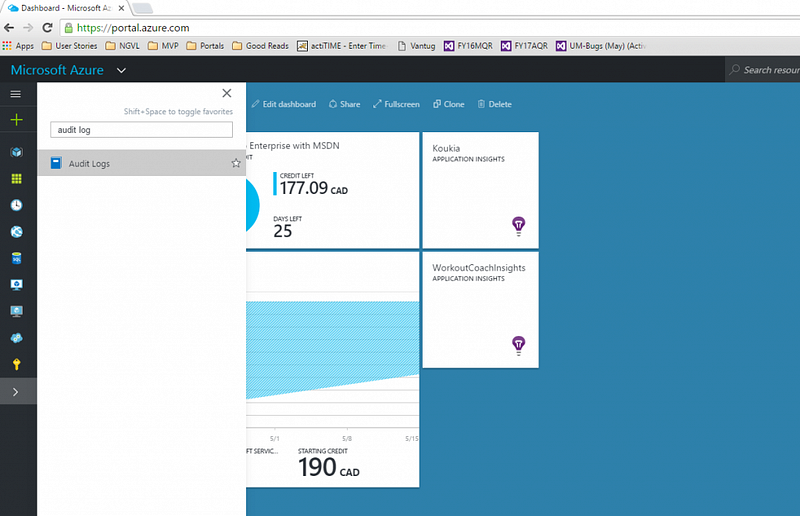
First you login to Azure Portal and from the left menu click on Browse and in the Filter box type in “Audit Logs”:
Then you click on the Audit Logs menu and you can see the summary of the Audit logs with the chart on top that shows the logs for the past 7 days (you can change the time filter if you like):
and at the bottom there are the details of the events that happened and you can drill in to the ones that you are interested in:
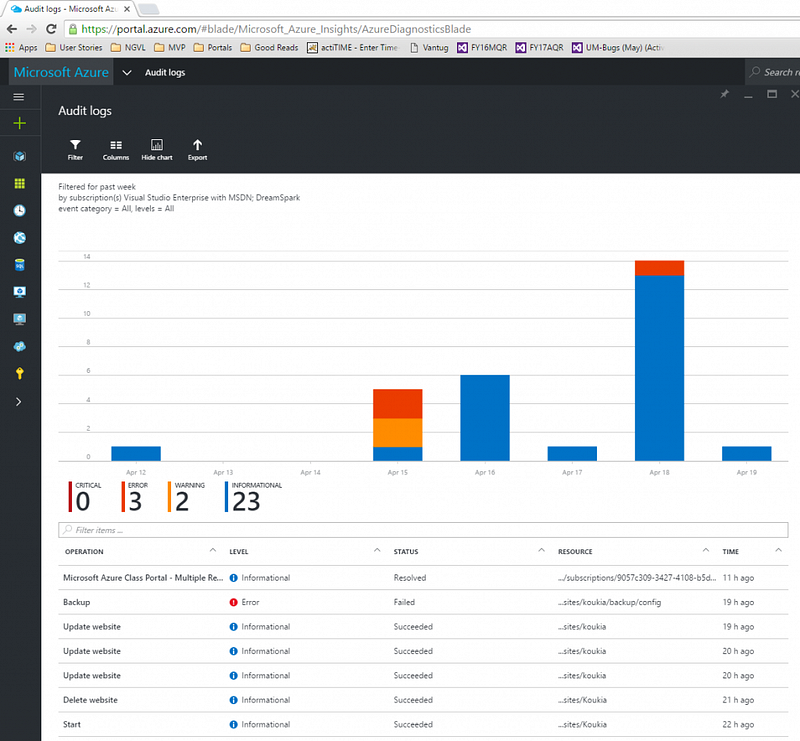
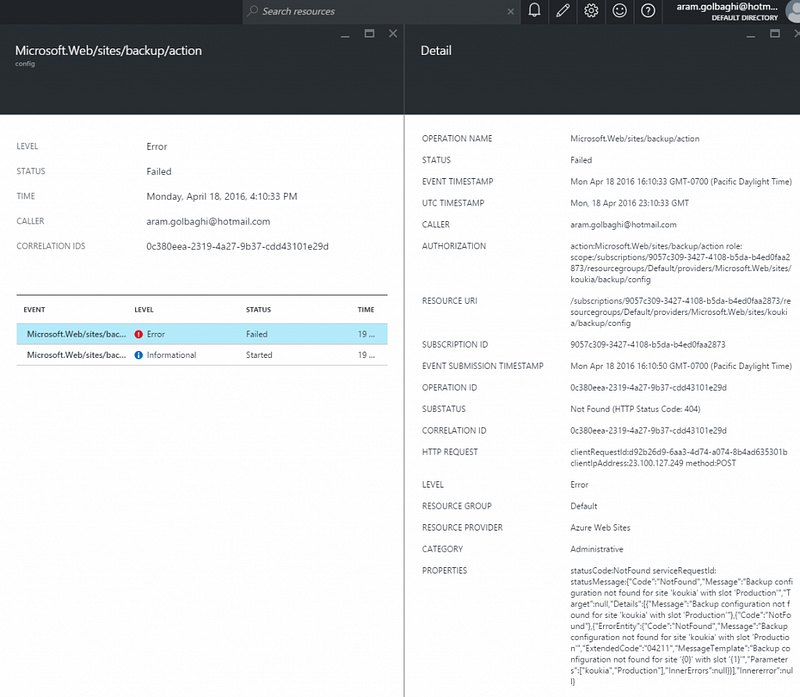
Now I just click on the one error case there with is for a Backup operation on “koukia” (A website that I host in Azure) resource (Resource column shows you which resource is the audit related to)
and I can see the details of the error, the message and the Correlation Id that I can use to see the complete list of events with that unique Id or in case I need to follow up with Azure Support that Id might come in handy for them:
You can also set Alert Notifications based on the events that you see in the Audit logs, like you want to get an alert if a Backup operation failed or things like that.
Found this post useful? Kindly tap the ❤ button below! :)